Why background removal matters
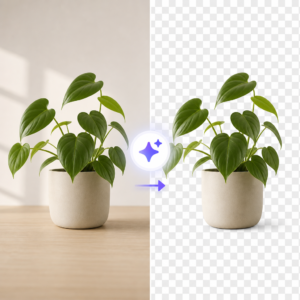
Background removal is one of the most useful features in modern AI image tools. It helps turn an ordinary photo into a clean visual that is easier to reuse across websites, online stores, ads, presentations, and social media posts. A removed background can make the main subject stand out more clearly, reduce distractions, and save time compared with manual editing. For businesses, this can improve product images and branding materials. For personal projects, it can help create profile pictures, invitations, collages, or simple design assets. Because many users want fast results without learning complex software, AI background removal has become an important part of image editing workflows.
Unlike traditional manual selection tools, AI can often detect the main subject automatically. It looks at shapes, edges, contrast, and other visual patterns to separate people, objects, or products from the background. This process is especially helpful when users need to edit many images at once or want a quick first version before making small refinements. The quality of the result still depends on the source image. Clear subjects, good lighting, and visible edges usually lead to better cutouts. When the background is too similar to the subject, or when there are shadows, hair, glass, or fine details, some manual correction may still be needed after the AI does its initial work.
How to get cleaner results
To get better background removal results, it is useful to start with the right type of image. Choose a photo where the subject is easy to identify and not heavily blended into the background. If possible, use images with strong contrast between the subject and the surrounding area. Sharp focus also helps, since blurry edges can make separation less accurate. After the AI removes the background, inspect the image closely around hair, hands, product corners, transparent surfaces, and soft shadows. These are common areas where rough edges may appear. If the tool offers controls for edge refinement, feathering, or restore and erase options, these settings can improve the final look without needing advanced editing knowledge.
It is also important to think about what happens after the background is removed. Some users want a transparent PNG for flexible design use, while others may replace the background with a solid color, a gradient, or a new scene. The best choice depends on the final purpose of the image. Product listings often benefit from clean, neutral backgrounds. Marketing graphics may need branded colors or custom layouts. A transparent background is often the most versatile option because it allows the image to be placed on different designs later. Before exporting, check the image dimensions and resolution so the subject stays sharp in its final use. A good cutout combined with the right file settings can make the image more professional and easier to reuse.
When to use AI background removal
AI background removal works well in many everyday situations. Online sellers can use it to create cleaner product photos for marketplaces and store pages. Content creators can isolate people or objects for thumbnails, banners, and post graphics. Small businesses can prepare team photos, promotional images, and simple ad visuals without spending time on complex editing. It can also support designers who need a fast starting point for mockups, flyers, or website visuals. While it is not a complete replacement for every advanced editing task, it offers a practical solution for users who want speed, accessibility, and consistent results. When combined with careful image selection and basic refinement, AI background removal can become a reliable step in a wider image creation and editing process.